Showing posts with label Tips and Tricks. Show all posts

Thursday, 13 February 2014

How to Hide Files(Steganography) in the Photo | MP3 | Video and email free

How to Hide Files(Steganography) in the Photo | MP3 | Video and email free


 What is the steganography?

The Steganography is defined as the art of science that the hiding information and data or the messages in any new image. There are lot of advantage of the steganography is that. Those who are outside a party and even do not realize that the some sort of a communication is being to be done.
Steganography have some function that comes in the different forms which is used the many people to hiding the information that show is below
  1. Hidden information in the Text Files
  2. Hidden information in the Image Files
  3. Hidden information in the Document Files
  4. Hidden information in the Video Files
  5. Hidden information in the Audio Files
  6. Hidden information in the E-Mails 

How to Hide the File behind an Images:

This s-tool is the steganography tool that hides the files in GIF, WAV and BMP files behind the picture. just take your any file and put on the image then give your password then send to any where . no your hidden file ready to send to any person.
How to Hide the File behind an Images:

Steganography to download the software

The Document Steganography hide you file in the document:

Merge Streams shows you that how to the merge MS Word streams and the MS Excel Workbook stream. It can hide a MS Excel document inside the MS Word document or the vice a versa. If you wish to the transparently hide some documents inside the old financial reports and this is just for you. And it does not the implement any crypto and is not to secure enough, but is very smart trick.

CLICK HERE to download the software

How to Hide the File behind Audio [Audio Steganography]

Mp3stegz is the application that applies the stenographic (steganography) algorithm that in mp3 files and this software Mp3stegz will maintain the original mp3 files size and a sound quality. Then The hidden message is compressed and then encrypted easily.
How to Hide the File behind Audio

CLICK HERE to download the software

How to Hide the File’s behind the Video (Video Steganography)

This software name is Our Secret (formerly Steganography) and lets you hide your text files or files that such as video, image, audio and others in the file. It is designed to all the files hide and send your sensitive message or files.
How to Hide the File’s behind the Video Steganography

Our secret Download to download the software

How to Send the Hidden Text in the Mail (Email Steganography)

The Spam Mimic

How to Send the Hidden Text in the Mail (Email Steganography)

The Spam Mimic to visit the website .
- See more at: http://www.mylatesttricks.com/2013/01/how-to-hide-steganography-files-in.html#sthash.GvaleWAM.dpuf

Undo closed Internet browser tab

Undo closed Internet browser tab

Oops did you mistakenly close a tab you didn't want to close? Press CTRL + Shift + T to undo a close tab. Pressing this more than once will undo multiple closed tabs. This feature works in all major browsers including Google Chrome, Mozilla Firefox, Microsoft Internet Explorer, and Opera.


How To Trace Your Facebook Profile Visitors

   How To Trace Your Facebook Profile Visitors
Now here we found who recently visited your profile.
Follow below steps for get to know your FB recent visitors
.

Step 1) Go to your Facebook Profile Page.
Step 2) Now Press Ctrl + U from your keyboard for see source code of your profile page.
Step 3) Now press Ctrl + F from your keyboard to open search box.
Step 4) Now search this code {"list":
Step 5) You find some Facebook Profile Ids are like shown below. Click on example image for zoom.

Step 6) There are some Facebook Profile Ids of your friends who visited recently.
Step 7) The first one ID's are showing visits the most number of time. 
Step 8) Now if your want to findout, Open a new tab Enter below link :www.facebook.com/Facebook Profile Id

Enjoy The Trick.. :)

Organize Your Photo Library

Organize Your Photo Library

it is tokeep your photos in order with just a little bit of proactive work.

  • Store on a dedicated external hard drive — Instead of storing your photos on your computer's hard drive (which takes up lots of space), buy a dedicated external hard drive to use as your digital photo library. Store it in a safe place, and you'll never be without your precious pics.
  • Label your pics as you save them — Instead of dumping all your pics into one file and saving them, take the time to go through your images, keeping only the best of the bunch, and label with names, dates, and events.
  • Stay organized with labelled folders — Create folders for each event you shoot, specifying the event name and date for each label. If you're taking random pics, create seasonal folders (like Summer 2011) so you can stay on top of your one-off photos.
  • Routinely empty your SD card — By routinely moving your photos off of your camera's SD card, you'll ensure that you will never run out of space when trying to capture a family event, party, or video. Try moving photos and video files off your SD card at least once a month or, better yet, after every major event.

Change Your Passwords

Change Your Passwords

These days, you live your life online. With digital profiles ranging from banking to social networking, keeping your accounts safe should be of the utmost importance. So why are you still using a lame password that any hacker (or creative thinker) could compromise? Changing your passwords on a regular basis and using unique phrases with a combination of letters, numbers, and symbols for every website is ideal. I know you're thinking that you'll never remember all those different passwords, but creating hacker-proof passwords is easier than you think. Check out the quick tutorial below and set a reminder to change your passwords again in three months!
  1. Choose a phrase — This one time at band camp
  2. Change words to numbers — This 1 time at band camp
  3. Pick first letter of each word or number — T1TABC
  4. Add special characters — T1T@BC
  5. Customize by adding a suffix for each site you register with — (example: for Amazon) T1T@BCAMA

Wednesday, 12 February 2014

Tips and Tricks For Staying Safe Online

Tips and Tricks For Staying Safe Online

Take charge of your online well-being with these tips and how-tos.
clear Google Search History
Your Google account is integrated across all of the web giant's many online properties. If you'd rather not have your web search history combined with information gathered from other products like Google+, YouTube, and so on, then you'll want to delete your web history posthaste. Follow our guide for clearing your Google search history

Manage What Personal Info Appears Online
0 0 0 0 0 0
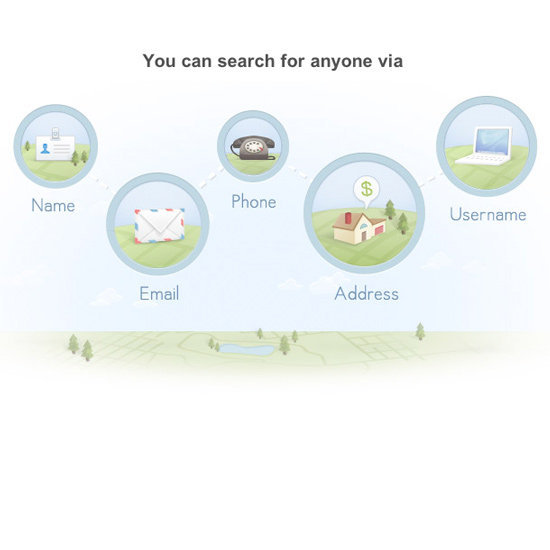
Five bucks is all it takes for a stranger online to find out your phone number, your family members, and your complete location history online. What did you do to authorize this information? Nothing. All of it is public record, and sites like Spokeo and PeopleSmart are making this personal information available on the web for a small fee.
Use our how-to on opting out of these people directories.
Report Online Scams and Phishing Emails
0 0 0 0 0 0
Don't sit back and let your web presence get inundated with suspicious emails and scams. Report hackings, Internet fraud, and dubious emails to the US government.

Hacking or a computer virus

If you suspect you've become a victim of hacking or have had a computer virus installed on your machine, then you can report the incident to your Internet service provider (like Comcast or AT&T) or directly to the FBI.

Internet fraud

If you've been shopping online and think that you've been scammed, have had your identity stolen, or notice fraudulent activity, then you can report the offender to the FTC for investigation. Then check out the FTC's resource for what to do next and how to protect yourself.

Spam or phishing emails

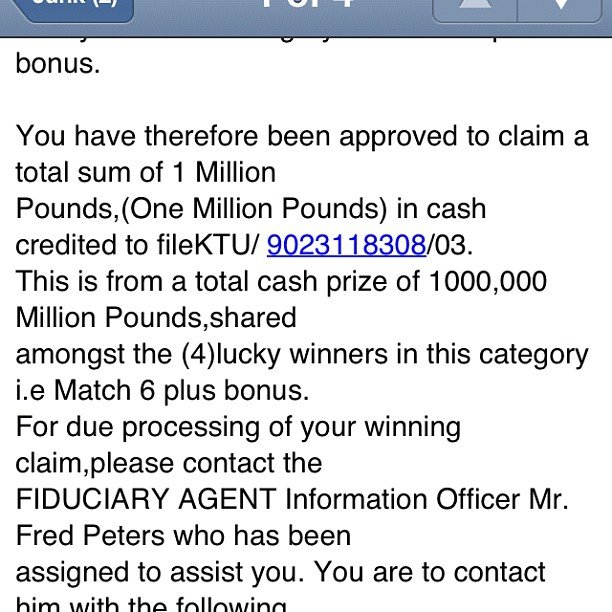
If you suspect you've received spam or phishing emails (that are trying to scam you for private information like log-ins and passwords), then forward them directly to the FTC's database for spam with the full header information, or send to the Anti-Phishing Working Group
Enable Private Browsing on iDevices
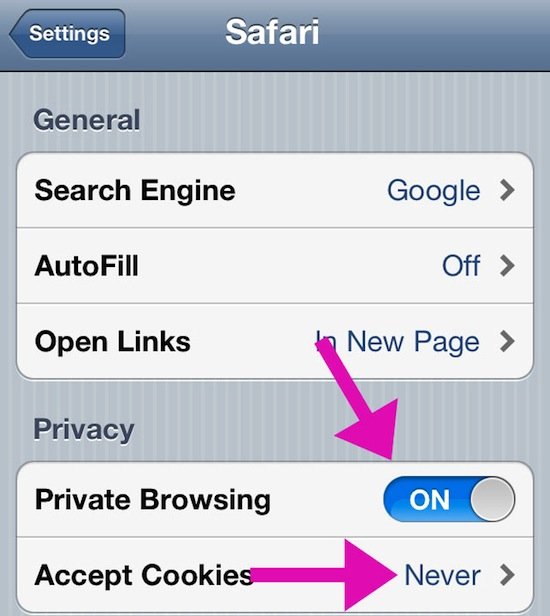
But there are two very easy steps you can take in order to ensure that no one tracks your browsing history ever when you're using an Apple product.
  1. Head to your iPhone or iPad's General Settings. Scroll down to your Safari app, and then find the area marked "Private Browsing." If it's not already, then switch that to "On."
  2. Then click on the "Accept Cookies" section and switch it to "Never."

  1. Shop Safely Online
Shop Safely Online
0 0 0 0 0 0       
Have an online shopping addiction? Be sure you follow these general rules so you don't become the victim of an online credit card scam!
  • Use a single credit card for all online purchases: It's best to use a credit card for all online charges (vs. a debit card), since credit cards offer the most protection against fraud. Additionally, designate just one credit card for all online purchases.
  • Monitor charges: The most basic thing you can do is to keep an eye on your designated card's charges. Review your monthly statements, and call your credit card company if you see any suspicious activity or mysterious charges.
  • Don't download unknown attachments: Received a flier in your inbox for an awesome sale? Be sure you know who sent it first — downloading malicious documents to your computer is a quick and surefire way for hackers to get to your personal data.
  • Use https where you can: Connect to sites using a secure connection by typing "https://" before the website address. HTTP (which stands for "hyper text transfer protocol") signifies the transfer of information between web servers and clients, whereas HTTPS signifies a secure connection (S for "secure") — your browser is talking to the server in a secure, encrypted connection. You'll notice it frequently on banking and other sites that contain personal information, and sport a green URL
Keep Kids Safe Online
0 0 0 0 0 0       
Between tablets, smartphones, and the ever-present home computer, kids are pretty tech-savvy these days. Still, keep any online dangers at bay with some practical safety measures.
  • Talk about Internet safety: When your children are old enough to take the wheel on the World Wide Web, it's time to have "the talk." Maybe even go so far as to post a list of Internet dos and don'ts at the family computer desk (which should be in view of a common area at all times to prevent sneak-surfing) to remind the little ones of the rules.
  • Enable parental controls: Enabling parental controls on a Mac is simple (System Preferences > Parental Controls), and a PC isn't difficult either (Control Panel > Internet Options > Content). But you do need to take the time to actually establish your parental control guidelines, which could take some time.
  • Practice safe surfing — Sit with your kids while they surf the Internet, and maybe even show them how you use it. Visit your Facebook pages together, browse their favorite online games, and help them decide what is appropriate. Setting a good example will show them that while there are a lot of scary things online, you can still navigate it safely.
  • Enable browser extensions: Firefox, Chrome, and Safari all offer great extensions, and there are plenty out there that help your kids surf safely and responsibly. Just search "parental control" in any of these add-on stores, and you'll find a number of extensions that block sites, password protect, and keep credit card info away from your connection.
Source
Password Safety
Outwit potential hackers by staying password smart.
  • Don't be fooled by emails: I've been asked to reply to my "banking institution" with my account login information before. The email is formatted to look legit, but if you check the sender's address, most likely it's from a third-party account like Gmail, Yahoo, or MSN. Be diligent, and never reply to emails with your bank logins or passwords, and always check where they are coming from first! When in doubt, call instead.
  • Reset passwords often: Too often, people have some pretty lame passwords, which allow their accounts to get hacked even without a phishing scam. Make sure your passwords are tough to guess, and try to change them every few months.
  • Get some password help: There are sites out there that can help you choose a hacker-proof password, but just don't go writing it down in an easy-to-find place soon after you settle on one!
  • Never forget your password again: You can use a device like Roboform to store your passwords digitally, and then all you have to do is insert it into your computer's USB port for access. Just keep that sucker under lock and key!
  • Socialize Shrewdly
    Socialize Shrewdly
    0 0 0 0 0 0
    When joining the latest social network du jour, follow these best practices.
    • Create an alternate email address for account sign-up: If you don't want to be found, then sign up for your social networking sites — from Flickr, Facebook, and Twitter — with a secondary or alternate email address so that when people search for you based on the email in their contact list, they don't find you immediately. This will allow you more control over who can see your profiles. If your accounts are already set up, then change the default email to a new one to prevent any new snoops. You may also consider using one email account when you sign up for sites in an effort to keep your social networking organized.
    • Disable all GPS/locator apps and settings: Don't want people to know you're tweeting from the coffee shop around the corner from your ex's place at 9 a.m. on Sunday? Don't tweet with your location enabled, and don't sign up for Google Latitude, which will allow friends insight into your locale.
    • Clear tracking cookies — Keep Facebook from tracking your website history by clearing your cookies often.